
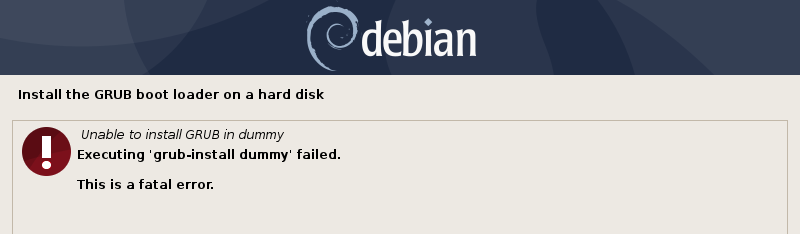
I recently installed the latest version of Debian on my laptop. I always do this when a new version comes out rather than upgrade, I prefer a fresh install which gives a sort of spring clean to my system. Unfortunately one of the final steps, installing the bootloader, failed. The error message was:
Unable to install GRUB in dummy.
Executing 'grub-install dummy' failed.
This is a fatal error.
You can’t exactly have a productive system if it won’t boot so how do we get around this little conundrum?
Finishing the installation
First of all, I didn’t bother to try and solve the problem with the Debian installer, instead I booted the system by alternate means and then configured the bootloader from within the running system. I don’t know why it failed, but a quick google suggests I am not the only one. If you have set up everything else correctly during installation then hopefully this solution will allow you to get the system up and running.
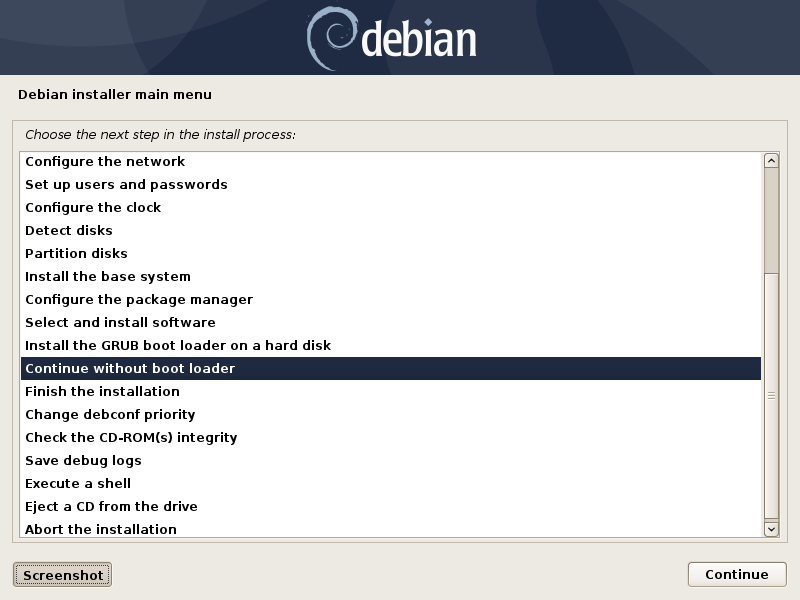
After the error occurs hit continue until you get back to the Debian installer main menu and select Continue without boot loader.
You’ll be presented with this useful screen telling you that there is no boot loader:
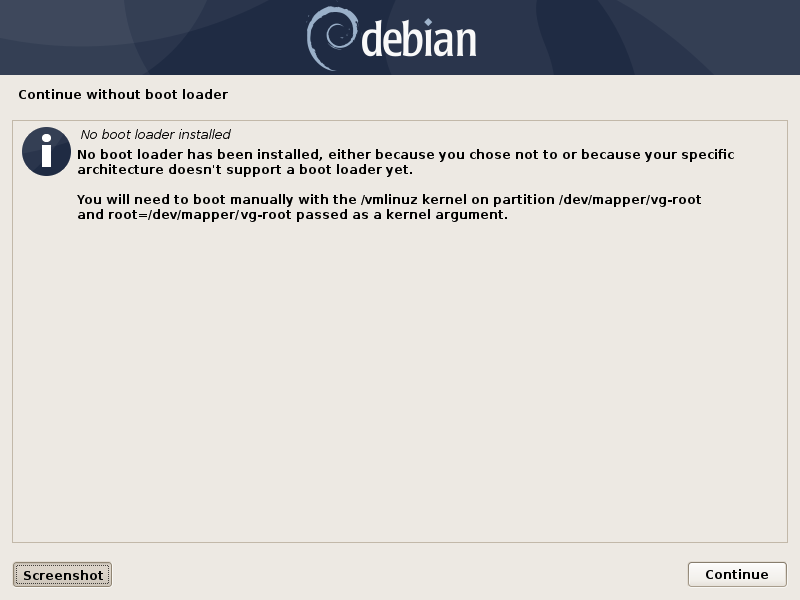
This is what we expected because the previous step had failed. Continue until you are back to the installer main menu and select Finish the installation. Ensure the installation media is still attached. Even though it’s 2019 I had actually burnt a CD as believe it or not I didn’t even have a USB stick handy which shows that even these are getting obsolete these days.
Booting from the GRUB command line
When the installer boots up again ignore the options and hit c for GRUB command line. You can now list all the partitions on the system by typing ls.
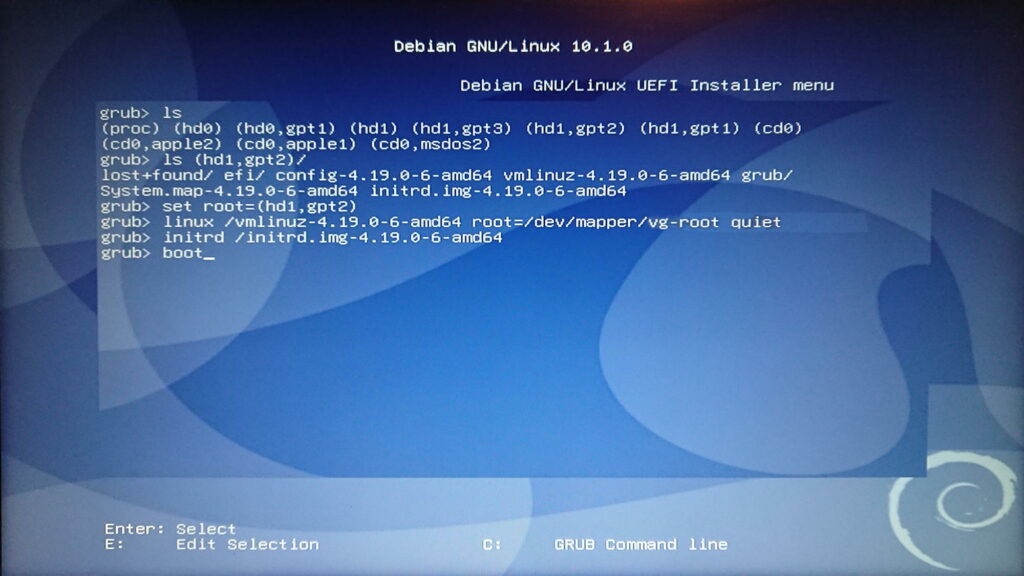
You can this list the contents of each partition by typing:
ls (partition name)/
Check the contents of the various partitions until you find the one with the vmlinuz-… kernel. When you find the right one you can boot this kernel directly from the grub command line by specifying the kernel, initrd and the root partition. For example:
set root=(hd1,gpt2)
linux /vmlinuz=4.19.0.6-amd64 root=/dev/mapper/vg-root quiet
initrd /initrd.img.4.19.0.6-amd64
boot
Making the system bootable
If the rest of the installation had gone ok then this should boot into the new system. Of course you don’t want to have to use the installation CD everytime you want to boot your system so we now need to install grub where the installer failed. This is fairly straight forward. Once you have logged in type the following:
sudo apt-get install --reinstall grub-efi
sudo grub-install /dev/sdb
sudo update-grub
sudo reboot
If it all goes without a hitch then the boot loader will install and configure itself in the correct boot partition. I didn’t have to do any further configuration as this was all done by the Debian installer. The only step that failed during installation was the boot loader.
Conclusion
This is an overview of how to solve this particular problem. I have assumed that everything else was correctly configured during the first part of the installation. If any of this has failed or does not make sense then have a look at your particular boot setup. Is it UEFI? Have you a separate EFI partition? Is it secure boot? If you are still stuck then get in touch and maybe I can help. Finally, if you have any questions or anything to add please leave a comment.